1. Firmware Burning Instructions
Currently, BM1688 provides two update methods: TF Card Flashing and USB Burning.
- TF Card Flashing will rewrite the entire eMMC, meaning all data stored in eMMC will be lost. This method is the cleanest and most reliable. Theoretically, it can be performed as long as your BM1688 has no hardware damage.
- File Replacement Method refers to upgrading the bootloader, kernel, and other software separately by replacing the corresponding files under Ubuntu. This method carries certain risks, such as version mismatches between different software components and file corruption.
The operation steps for the TF Card Software Update are as follows:
TF Card Flashing
- Format the TF card to FAT32 (if the TF card has multiple partitions, only the first partition can be used), with a capacity of 4GB or above.
- Download the latest flashing package for S1A-BM1688. Different DDR configurations require switching to different DTS files.
Firmware Download Link (8GB):
Link: https://pan.baidu.com/s/1YqSjeHHOfH81cc8nofeRTw
Password: 52p5
- Extract the downloaded firmware to the root directory of the TF card, and verify the MD5 checksum of the compressed package.
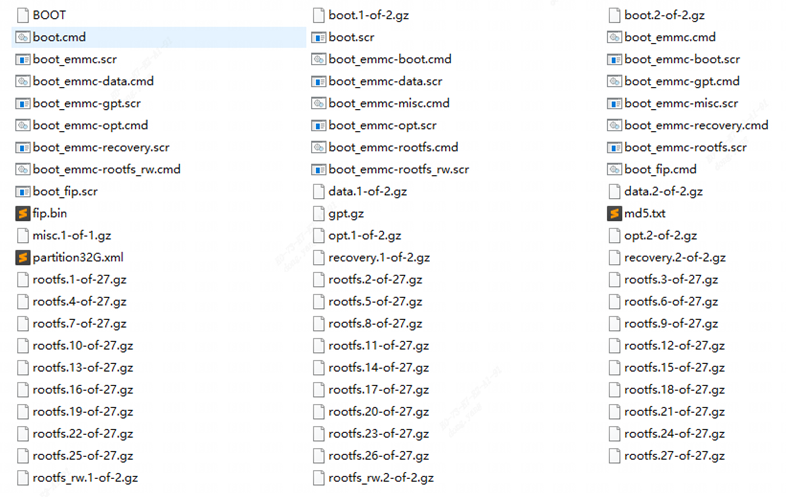
- Confirm the files are as follows (the number may vary):
Power off the BM1688, insert the SD card and connect the serial terminal, then power on the device. The BM1688 will automatically enter the flashing process.
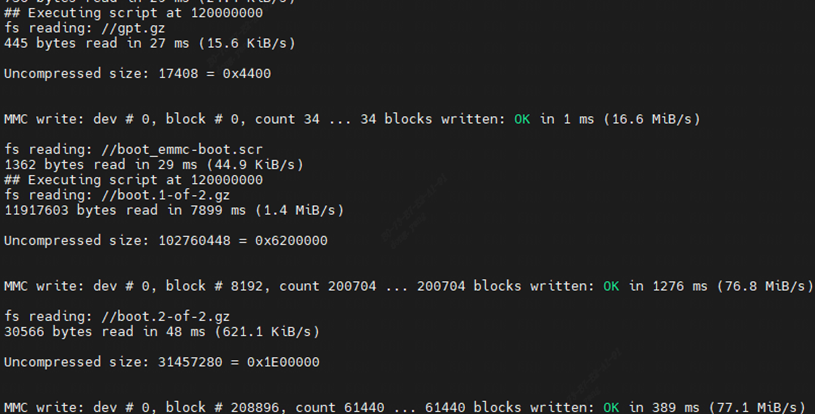
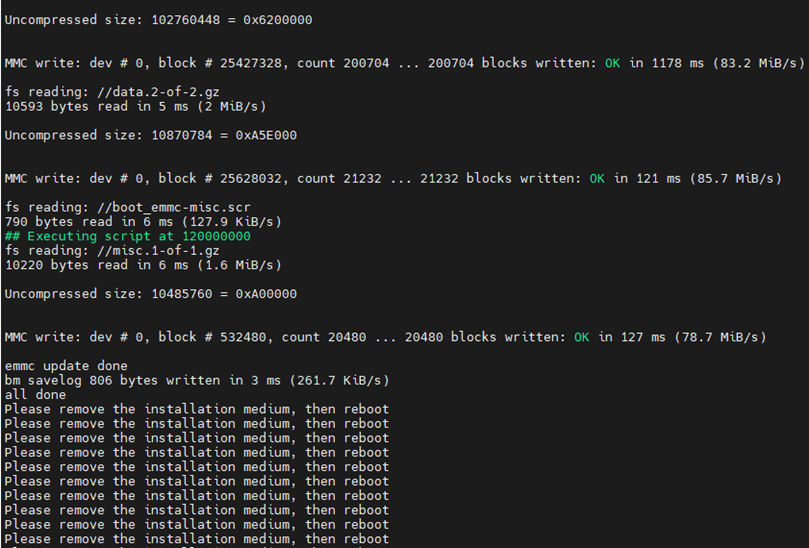
The flashing process generally takes 3 to 10 minutes. When the prompt Please remove the installation medium, then reboot appears after completion, power off the device and take out the TF card.
Note: After flashing, the Ubuntu system will initialize the file system and perform other critical operations on its first boot. Do not power off the device arbitrarily. Shut down the system only after entering the command line interface.